Git + GitHub + Auto Deployment Quick Reference
1. Install Git
Download and install Git for Windows.
Verify:
git --version
2. Check Current Git User
git config --global user.name
git config --global user.email
See all settings:
git config --global --list
3. Set Correct User
git config --global user.name "Your Name"
git config --global user.email "your@email.com"
4. Remove Existing GitHub Login
Create file:
echo protocol=https>cred.txt
echo host=github.com>>cred.txt
Verify:
type cred.txt
Remove cached credentials:
type cred.txt | git credential-manager erase
Delete temporary file:
del cred.txt
5. Create Repository in GitHub
Example:
https://github.com/dotgirish/timetable
Create as Private or Public.
6. Configure Existing PHP Folder
Go to project folder:
cd "D:\AI\AI Coding\timetable"
Initialize Git:
git init
7. Connect Folder To GitHub
git remote add origin https://github.com/dotgirish/timetable.git
Verify:
git remote -v
8. First Upload
git add .
git commit -m "Initial Commit"
git branch -M main
git push -u origin main
GitHub will ask for authentication.
Login with correct GitHub account.
9. Daily Upload
git add .
git commit -m "Description"
git push
10. Create GitHub Secrets in github.com
Repository ==> Settings ==> Secrets and variables ==>Actions –> Repository Secrets
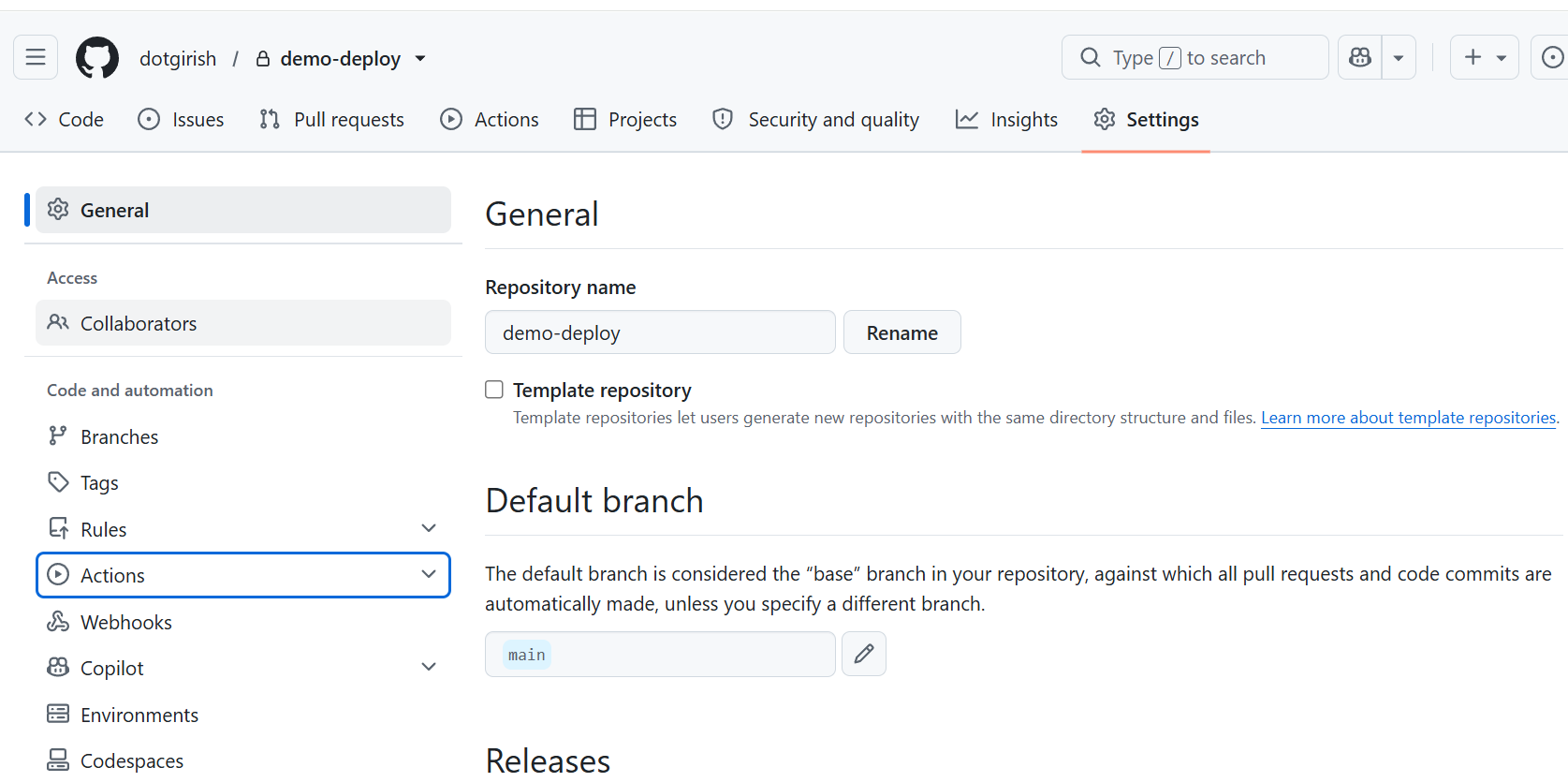
Create:
FTP_SERVER  (something like ftp.server.com)
FTP_USERNAME
FTP_PASSWORD
PHASE 1 : AUTO DEPLOY FROM MAIN BRANCH
11. Create Deployment Workflow (on local windows)
Create: (in local windows D:\AI\AI Coding\timetable\.github)
.github\workflows\deploy.ymlExample: (check server-dir session and make adjustments)
name: Deploy PHP Site
on:
push:
branches:
– mainjobs:
ftp-deploy:
runs-on: ubuntu-lateststeps:
– name: Checkout
uses: actions/checkout@v4– name: FTP Deploy
uses: SamKirkland/FTP-Deploy-Action@v4.3.5
with:
server: ${{ secrets.FTP_SERVER }}
username: ${{ secrets.FTP_USERNAME }}
password: ${{ secrets.FTP_PASSWORD }}server-dir: public_html/girishg.net/timetable/
Commit:
git add .
git commit -m "Added deployment workflow"
git push
12. Development + Deployment Workflow
Work normally:
git add .
git commit -m "New Feature"
git push
Result:
Windows PC
      ↓
GitHub main
      ↓
GitHub Actions
      ↓
FTP Upload
      ↓
HostGator Server
Website updates automatically.
13. Verify Deployment
GitHub Repository
Actions
Open latest run.
Status:
🟡 Running
✅ Success
❌ Failed
Open:
ftp-deploy
→ FTP Deploy
View upload log.
14. Temporarily Disable Deployment
GitHub
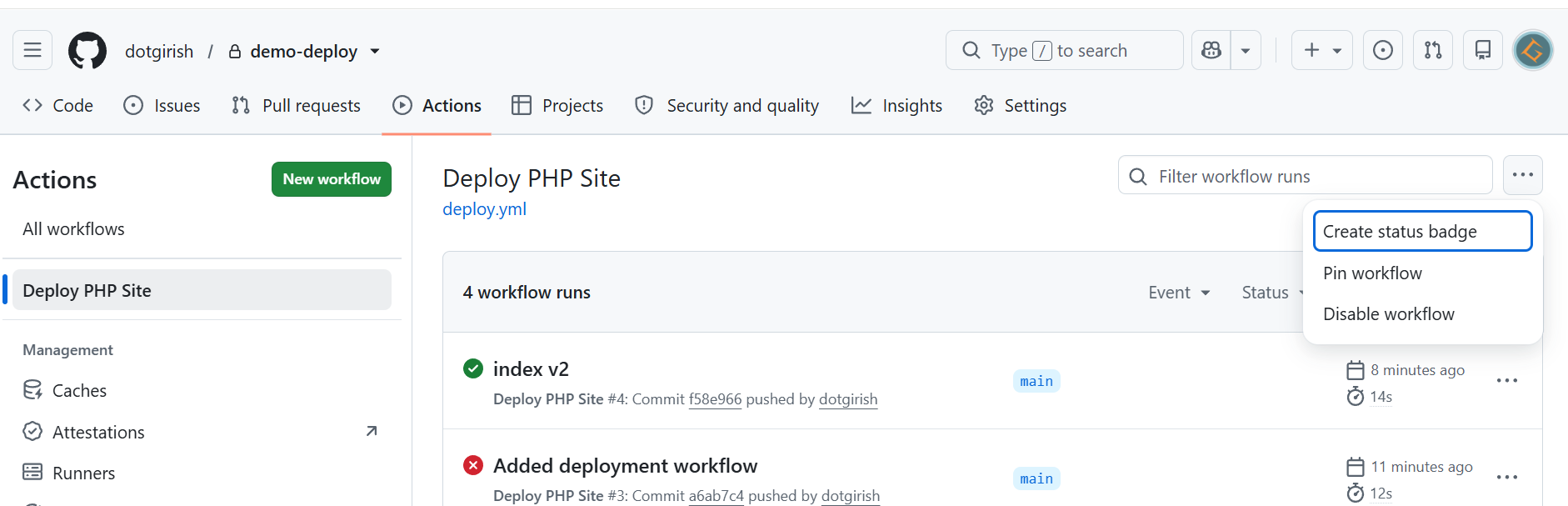
Now:
git pushOnly updates GitHub.
No deployment.
15. Re-enable Deployment
GitHub
Actions
Deploy PHP Site
Enable Workflow
PHASE 2 : INTRODUCE PRODUCTION BRANCH
Current Flow:
Windows
   ↓
main
   ↓
Deploy
   ↓
Server
Target Flow:
Windows
   ↓
main
   ↓
production
   ↓
Deploy
   ↓
Server
16. Create Production Branch
git checkout -b production
git push -u origin production
Return to main:
git checkout main17. Change Deployment Branch
Edit:
name: Deploy PHP Site
on:
push:
branches:
– productionjobs:
ftp-deploy:
runs-on: ubuntu-lateststeps:
– name: Checkout
uses: actions/checkout@v4– name: FTP Deploy
uses: SamKirkland/FTP-Deploy-Action@v4.3.5
with:
server: ${{ secrets.FTP_SERVER }}
username: ${{ secrets.FTP_USERNAME }}
password: ${{ secrets.FTP_PASSWORD }}server-dir: public_html/girishg.net/timetable/
git add .
git commit -m "Deploy only from production"
git push
18. New Development Workflow
Work normally:
git checkout main

git add .
git commit -m "New Feature"
git push
Result:
Windows
   ↓
GitHub main
No deployment.
19. Deploy To Server
When ready:
git checkout production
git merge main
git push
Result:
Windows
   ↓
production
   ↓
GitHub Actions
   ↓
FTP Upload
   ↓
HostGator Server
Website updated.
20. Rollback
View history:
git log --onelineUndo a commit:
git revert COMMIT_ID
git push
If deployment is from:
mainpush to main.
If deployment is from:
productionpush to production.
21. Useful Commands
Current branch:
git branchSwitch branch:
git checkout maingit checkout productionStatus:
git statusHistory:
git log --onelineRemote URL:
git remote -v